
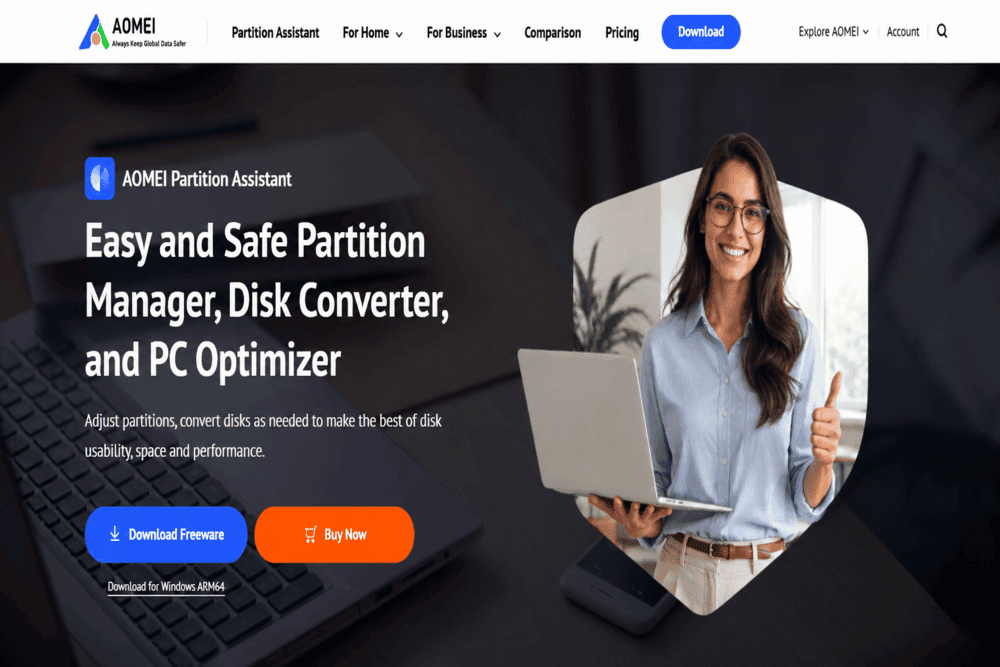
Managing disk partitions isn’t something most Windows users think about—until they run into a problem. Whether you’re running out of space on your system drive, upgrading to a larger SSD, or trying to reorganize your storage without losing data, Windows’ built-in Disk Management tool quickly shows its limitations for disk partition management.
That’s where AOMEI Partition Assistant comes in. Designed for both beginners and experienced users, it offers an easier way to resize partitions, clone hard disks, migrate Windows to an SSD, and perform advanced disk management tasks without relying on complicated command-line tools. As a partition manager software for Windows, it simplifies operations that would otherwise require multiple utilities.
In this review, we’ll take a closer look at AOMEI Partition Assistant’s features, ease of use, pricing, and overall performance to help you decide whether it’s the right partition management software for your needs.
Looking for a faster alternative to Windows Disk Management?
AOMEI Partition Assistant offers a free Standard Edition for everyday partition management, while the Professional Edition adds advanced features such as OS migration, disk cloning, and partition recovery.
Download AOMEI Partition Assistant
What Is AOMEI Partition Assistant?
AOMEI Partition Assistant is a Windows disk partition manager developed to simplify storage management for home users, professionals, and businesses. Instead of working with the limited options available in Windows Disk Management, the software provides a complete set of tools for organizing, optimizing, and maintaining hard disks and SSDs through an intuitive graphical interface.

Its core functionality revolves around partition management. Users can resize, move, merge, split, create, delete, or format partitions without needing advanced technical knowledge. Beyond these basic operations, AOMEI also includes powerful features such as disk cloning, operating system migration, secure SSD alignment, bootable media creation, and disk health tools. It also supports multiple file systems, including NTFS, FAT32, and exFAT, while allowing users to convert disks between MBR and GPT.
A key reason AOMEI Partition Assistant has become so popular is its flexibility. The AOMEI Partition Assistant Standard Edition covers most everyday partition tasks, while the AOMEI Partition Assistant Professional Edition and Server editions unlock advanced capabilities for power users and IT administrators. This allows users to start with the standard version and upgrade only if they need more specialized tools.
Whether you’re replacing an old hard disk, upgrading to an SSD, or reorganizing partitions, AOMEI Partition Assistant offers a more capable alternative to Windows’ built-in disk management tools. Its intuitive interface makes these tasks easier for both home users and IT professionals.
Key Features of AOMEI Partition Assistant
One thing that immediately stands out is how AOMEI combines several disk and partition management tools into a single application. Instead of installing separate programs for cloning drives, migrating Windows, or resizing partitions, users can perform all these tasks from one interface. AOMEI Partition Assistant also includes advanced utilities that go beyond basic partitioning tools, making it suitable for both home users and professionals. Below are the features that make the software stand out.
Resize, Move, and Merge Disk Partitions
Managing storage space is one of the most common reasons people look for partition software. AOMEI Partition Assistant makes this process straightforward by allowing users to resize, move, merge, split, create, and format partitions without reinstalling Windows or manually transferring files.
For example, if your C: drive is running low on space while another partition has plenty of free disk space, you can redistribute the available storage in just a few steps to free up space where it’s needed most. The software previews every pending operation before making changes, helping reduce the risk of accidental mistakes and allowing modifications without any data loss in supported scenarios. This makes it a practical solution for both beginners and experienced users who need more advanced storage management features than the built-in Windows tool provides.
Clone Hard Drives and SSDs

Replacing an old hard drive with a faster SSD can dramatically improve a computer’s performance, but reinstalling Windows and all your applications can be time-consuming. AOMEI Partition Assistant simplifies this upgrade by allowing you to clone an entire disk, including the operating system, installed programs, and personal files.
The cloning process is guided step by step, making it accessible even for users with little technical experience. Whether you’re upgrading to an SSD, replacing an aging drive, or creating a full disk clone, the process is straightforward and reliable. Once the clone is complete, you can boot directly from the new drive without starting from scratch. For most users, this is one of AOMEI Partition Assistant’s standout features. It can save hours of setup time by eliminating the need to reinstall Windows and your applications after upgrading to a new SSD.
Migrate Windows to SSD Without Reinstalling

If your goal is simply to move Windows to a new SSD while keeping another drive for storage, AOMEI Partition Assistant offers a dedicated migration tool in its Professional edition.
Instead of copying every partition on the original disk, the software transfers only the operating system and the files required for Windows to run. This approach saves time and storage space while making it easier to upgrade to a faster SSD. For users who want better boot times and overall system responsiveness, this is one of the software’s most valuable features.
In addition to standard system migration, the Professional edition includes tools such as Windows To Go Creator, allowing users to create portable Windows installations on a USB drive for troubleshooting, testing, or working across multiple computers.
Convert Disk Partition Styles Without Data Loss
Changing a disk from MBR to GPT is often necessary when upgrading to modern hardware or installing Windows 11. Normally, this process requires deleting existing partitions, but AOMEI Partition Assistant can perform the conversion while preserving existing data in supported scenarios.
The software also supports converting GPT back to MBR when compatibility with older systems is required, including computers still running Windows 8. While it’s still recommended to back up important files before making structural changes to a disk, this feature can save significant time and reduce the complexity of upgrading storage devices. Together with its advanced partition tools, it offers a practical way to manage modern storage configurations without unnecessary complications.
Pros & Cons
Like any disk management software, AOMEI Partition Assistant has its strengths and limitations. After evaluating its features, usability, and overall value, here’s where it stands as one of the best free and premium partition management solutions available for Windows users.
Pros
- Beginner-friendly interface with a clean layout and guided workflows that make the software easy to use.
- Comprehensive partition management tools, including resize, merge, split, and format operations.
- Reliable disk cloning for upgrading from HDD to SSD without reinstalling Windows.
- Supports modern storage technologies, including GPT disks, UEFI systems, and SSD optimization.
- AOMEI Partition Assistant Standard provides a generous free edition that covers most everyday partition management needs.
- Multiple editions available, making it suitable for home users, IT professionals, and businesses.
- Suitable for users who regularly upgrade storage or manage multiple drives.
Cons
- Some advanced features require the AOMEI Partition Assistant Professional Edition, such as OS migration and dynamic disk management.
- Windows-only software, with no native version for macOS or Linux.
- Certain operations require a system restart, especially when modifying the system partition.
- The interface feels slightly dated compared to some newer competitors, although it remains easy to navigate.
Our Take
AOMEI Partition Assistant strikes a good balance between ease of use and advanced functionality. Casual users can perform common tasks without feeling overwhelmed, while professionals still have access to powerful tools for more complex disk operations.
Although some premium features are locked behind a paid license, the free edition is generous enough for many users. If you frequently upgrade storage, replace hard drives, or manage multiple Windows PCs, the Professional version offers additional convenience that can easily justify the upgrade.
Overall, the combination of an intuitive interface, dependable performance, and a broad range of features makes AOMEI Partition Assistant an excellent choice for users looking to optimize disk performance, manage partitions more efficiently, and get more value from their existing hardware.
Performance
In day-to-day use, AOMEI Partition Assistant delivers consistent performance during common disk operations such as resizing partitions, cloning drives, and converting disk formats, while remaining responsive during normal use.
Before making any changes, the software queues each operation for review. This extra step helps reduce mistakes when working with important data, making it a dependable choice for both home users and IT professionals.
Performance Highlights
The table below summarizes how AOMEI Partition Assistant performs across the features that matter most in everyday use.
| Category | Rating | Notes |
|---|---|---|
| Ease of Use | ⭐⭐⭐⭐⭐ | Clean interface with guided workflows. |
| Partition Management | ⭐⭐⭐⭐⭐ | Fast and reliable for resizing, merging, and creating partitions. |
| Disk Cloning | ⭐⭐⭐⭐⭐ | Straightforward process with consistent results. |
| Windows Migration | ⭐⭐⭐⭐☆ | Simple to use, but available only in paid editions. |
| System Resource Usage | ⭐⭐⭐⭐☆ | Lightweight during normal operation with minimal background activity. |
Is It Safe to Use?
One of the biggest concerns when working with partitions is the possibility of losing important files. AOMEI addresses this by requiring users to confirm all pending operations before any changes are written to the disk. This extra review step helps prevent accidental modifications and gives users an opportunity to verify every action.
Like any partition management tool, however, no software can completely eliminate the risks associated with disk operations. Unexpected power failures, hardware issues, or existing disk errors can still cause problems. For that reason, creating a recent backup before making significant changes is always recommended, regardless of which partition manager you use. If you don’t already have a backup solution, our AOMEI Backupper Review shows how to create a full system backup before resizing partitions, cloning drives, or making other disk changes.
In normal conditions, AOMEI Partition Assistant provides a stable environment for disk management and includes safeguards that make potentially complex operations much more approachable for everyday users.
AOMEI Partition Assistant Editions & Pricing
AOMEI Partition Assistant is available in several editions, allowing users to choose the version that best fits their needs. Whether you’re looking for a free disk partition solution or advanced business tools, there’s an edition designed for different workloads and experience levels.

Here’s a quick comparison of the available editions:
| Edition | Best For | Key Features |
|---|---|---|
| Standard | Home users | Basic partition management, create, resize, merge, split, and format partitions. |
| Professional | Power users | Everything in Standard, plus OS migration, advanced cloning, partition recovery, and more. |
| Server | Small businesses | Includes Professional features with support for Windows Server environments. |
| Unlimited / Technician | IT professionals | Designed for technicians and organizations managing multiple computers and servers. |
For most home users, the Standard Edition offers enough functionality for everyday tasks such as resizing partitions or preparing a new drive. However, users planning to migrate Windows to an SSD, recover lost partitions, or perform more advanced disk operations may find the Professional Edition a worthwhile upgrade.
Businesses and IT administrators should consider the Server or Technician editions, which include licensing and features tailored for commercial environments.
If you’re unsure which edition to choose, we’d recommend starting with the Standard Edition. You can always upgrade later if you need advanced features such as OS migration or frequently manage multiple drives.
Which Edition Should You Choose?
For most home users, the Standard Edition offers everything needed for everyday partition management. If you regularly migrate Windows, clone drives, or manage multiple disks, the Professional Edition is worth considering.
Compare Editions on the Official Website
AOMEI Partition Assistant vs EaseUS Partition Master
Choosing between AOMEI Partition Assistant and EaseUS Partition Master isn’t always straightforward. Both are among the most popular partition management tools for Windows, offering features such as partition resizing, disk cloning, and SSD migration. The main differences come down to pricing, available features, and user experience.
| Feature | AOMEI Partition Assistant | EaseUS Partition Master |
|---|---|---|
| Free Version | ✅ Generous feature set | ✅ Available |
| Resize & Merge Partitions | ✅ | ✅ |
| Clone HDD to SSD | ✅ | ✅ |
| Migrate Windows to SSD | ✅ (Professional) | ✅ (Paid) |
| MBR to GPT Conversion | ✅ | ✅ |
| User Interface | Clean and beginner-friendly | Modern and intuitive |
| Best For | Home users and IT professionals | Users looking for an all-in-one disk management tool |
Both applications perform well for everyday disk management tasks, and either can be a solid choice depending on your needs. However, AOMEI Partition Assistant stands out for its straightforward interface and the generous feature set available in its free edition. Users upgrading to an SSD or reorganizing storage on a Windows PC are likely to find everything they need without facing a steep learning curve.
If you’re already familiar with EaseUS products, switching may not be necessary. But for first-time users looking for a balance between functionality, ease of use, and value, AOMEI Partition Assistant is an excellent alternative.
Who Should Use AOMEI Partition Assistant?
AOMEI Partition Assistant is designed for a wide range of Windows users, from beginners managing a personal computer to IT professionals maintaining multiple systems. Its combination of easy-to-use tools and advanced features makes it suitable for different scenarios without overwhelming less experienced users.
It’s particularly useful for users who regularly upgrade storage, install SSDs, manage multiple partitions, or need more flexibility than Windows Disk Management provides. It’s especially recommended if you:
- Need more storage space on your system drive by resizing or merging existing partitions.
- Are upgrading from an HDD to an SSD and want to clone your drive without reinstalling Windows.
- Plan to migrate your operating system or OS to SSD while keeping your files and applications intact.
- Manage multiple disks or computers and need a reliable partition management tool.
- Want more flexibility than Windows Disk Management offers for everyday storage tasks.
On the other hand, if you only create or format partitions occasionally, the built-in Windows Disk Management utility may be sufficient. AOMEI becomes much more valuable when you need advanced features, greater flexibility, or simply a faster and more user-friendly workflow.
AOMEI Partition Assistant FAQ
Is AOMEI Partition Assistant free?
Yes. The free Standard Edition includes the essential tools needed for everyday partition management, such as creating, resizing, merging, splitting, formatting, and managing partitions. More advanced features, including OS migration and certain cloning capabilities, are available in the paid editions.
Is AOMEI Partition Assistant safe?
Yes. AOMEI Partition Assistant is widely used and includes safeguards such as previewing all pending operations before they are applied. However, because partition changes affect your storage structure, it’s always recommended to back up important files before making major disk modifications.
Can AOMEI Partition Assistant clone an HDD to an SSD?
Yes. The software can clone an entire hard drive, including Windows, installed applications, and personal files. This allows you to upgrade to a larger or faster SSD without reinstalling your operating system.
Does AOMEI Partition Assistant work with Windows 11?
Yes. The software is fully compatible with Windows 11 and also supports Windows 10, Windows 8/8.1, Windows 7, and several Windows Server editions, depending on the version you choose.
What’s the difference between the Standard and Professional editions?
The Standard Edition is intended for basic partition management and is free to use. The Professional Edition adds advanced features such as OS migration, enhanced disk cloning, partition recovery, and additional management tools designed for users with more demanding storage needs.
Is AOMEI Partition Assistant Worth It?
After evaluating its features, ease of use, pricing, and overall performance, AOMEI Partition Assistant remains one of the best partition management solutions for Windows. Its intuitive interface, reliable performance, and comprehensive feature set make it an excellent choice for both beginners and experienced users.
The Standard Edition provides everything most home users need, while the Professional Edition unlocks advanced features for users who frequently migrate operating systems, clone drives, or manage multiple disks.
If you’re looking for a reliable alternative to Windows Disk Management, AOMEI Partition Assistant is well worth considering.
Our Recommendation
If you’re looking for an easier alternative to Windows Disk Management, AOMEI Partition Assistant is one of the most complete solutions available.
Whether you’re a beginner or an experienced Windows user, AOMEI Partition Assistant offers enough flexibility to handle both simple and advanced storage tasks.
✔ Resize partitions
✔ Clone HDD to SSD
✔ Migrate Windows
✔ Convert MBR/GPT